Getting started
Connect your data, pick a template, and let the AI build a first draft — or start blank and do it yourself.
Quickstart
Your first document in 2 minutes
Screenshots and videos for each step of creating a document. This reference page skips the walkthrough.
Documents home
Documents is your home screen. Browse documents, switch between projects, and click New Document to start.
Projects
Every document belongs to a project. Select a project first and New Document creates inside it. Each project can have its own instructions (tone, audience, metrics) that apply to every document in it — expand the project header to edit them.
Two ways to create a document
Every document follows the same three-step start. At the setup screen the path forks — attach a data source and the AI drafts, or leave it empty and you edit from scratch. Both paths end in the same editor.
Common start
- 1On the Documents page, click New Document.
- 2Pick a template, click Continue.
- 3Name the document.
AI builds it
- 4In the Sources & template setup panel, attach at least one data source — pick an existing source, drop a CSV/Excel/JSON, or quick-connect (Snowflake, Google Drive, HubSpot, Stripe…).
- 5Answer template questions and fill Setup context if shown (optional).
- 6Click Create Document.
You build it
- 4Leave the Sources section empty, or start from Blank on the template picker (no setup panel at all).
- 5Answer template questions if shown (optional).
- 6Click Create Document.
Populated draft
Building First Draft runs first, then the editor opens with real numbers filled in.
Blank editor
Editor opens empty or scaffolded. Attach sources from the left sidebar any time.
Templates
Filter by category — Executive, Product, GTM, Engineering, Research, Personal — or search by name. 20+ built-in templates ship with sensible structure and setup questions.
Every template opens the Sources & template setup panel with three sections: template questions, data sources (attaching a source is what triggers the AI first draft), and free-form setup instructions. Some templates also show a Document Context Preview you can edit before creating.
See all templatesShowHide
Product — Product Metrics Review, Launch Retrospective, Experiment & A/B Test
GTM — Sales Pipeline Review, CS Health Brief
Engineering — Data Quality Report, Engineering Dashboard, API & Integration Monitor, Incident Post-Mortem
Research — Data Analysis Notebook, Research & Investigation, Competitive Intelligence, Web Data Report
Personal— Personal Finance, Travel Planner, Fitness & Health Log, Content Strategy, Side Project Dashboard
Agent context
Once your document exists, click Context in the toolbar (or press Cmd/CtrlShiftG) to open the Agent context drawer. Write per-document instructions here — tone, audience, what to emphasize. These are used by the agent and co-worker whenever they work on this document.
Project-level instructions (set on the Documents page) and document-level instructions (set here) work together — use both when you want shared defaults with doc-specific overrides.
Editor
Everything in Tappy is a block — text, headings, KPIs, tables, charts, code cells, images, and investigations. You reorder, configure, and refresh each block independently.
Layout
- Sticky toolbar at the top of the canvas, in two rows.
- Top row: Back to Documents, document title, live-data badge, save status, sidebar toggle, Share.
- Action row: Undo, Redo, Save, Refresh, Freeze / Unfreeze All, Context, Timeline. Analyze All appears here when any blocks have pending changes.
- Main canvas — the block editor, below the toolbar. This is where you write and arrange content.
- Right sidebar — three tabs across the top:
- Agent — chat with the AI (Cmd/CtrlAlt1).
- Sources — connected data sources for this document (Cmd/CtrlAlt2).
- Settings — document settings (Cmd/CtrlAlt3).
On mobile the sidebar becomes an overlay opened from the toolbar’s sidebar-toggle button.
Adding blocks
Three insertion paths. Pick whichever matches your flow.
1. Command palette — the keyboard-first path.
- Cmd/CtrlK — insert at the end of the document.
- Cmd/CtrlShiftK — insert below the selected block.
- Cmd/CtrlAltK — insert above the selected block.
Type to filter; arrow + Enter to pick. Contains every block type — including the AI variants (AI KPI, AI Table, AI Chart, AI Code). Picking an AI variant opens a prompt; picking a plain variant drops in an empty block.
2. “+ Add block” at the end of the document — a dashed button under the last block. Opens a dropdown with Text & Structure (Text, Heading 1/2/3, Divider, Image) and Insert Block (KPI, Chart, Table, Python). Everything here is empty — no AI generation from this dropdown.
3. Hover “+” next to any block — a small appears on hover. Same dropdown as above; inserts an empty block immediately above the hovered one.
Other ways blocks get created
- Enter on a text block — at the end of a paragraph or heading, Enter inserts a fresh paragraph below. Empty heading + Enter converts to a paragraph.
- Duplicate — hover copy icon on KPI / chart / table blocks, or press Cmd/CtrlD to clone the selected block in place.
- Duplicate with AI modification — Cmd/CtrlShiftD opens a prompt. Describe the variation (“same chart but by region”) and the AI rewrites the duplicate.
- AI-fill an existing empty block — select it and press Cmd/CtrlShiftEnter. See Inline block config.
Text blocks also have a ⋮⋮drag handle (hover) for reordering; it’s not an add-block menu.
Manual vs AI blocks
Data blocks can be filled by you or by the AI. Two ways to get the AI to do it:
- Pick an AI variant in the command palette (Cmd/CtrlK) — entries labeled “AI KPI”, “AI Table”, “AI Chart”, “AI Code”. Type a description; the AI writes the query and drops in the completed block.
- Insert an empty block, then AI-fill it — use any insertion path to add a plain KPI / Table / Chart / Code, then hand it to the AI with Cmd/CtrlShiftEnter (see Inline block config).
If you don’t want the AI involved, add a plain block and write the SQL or Python yourself in its config popover.
The two modes are interchangeable — you can edit an AI-generated query by hand, or hand a manual block to the AI later.
Inline block config
Clicking a data block opens its config popover in place — no modal, no page change. What you see depends on block type, but generally:
- Source picker — dropdown of connected sources for this document. Change it without losing your query.
- Query editor — SQL or Python, with syntax highlighting and run-on-save.
- Aggregation (KPI only) — SUM / AVG / COUNT / MIN / MAX over the query result.
- Output type (code only) — Table, Chart, KPI, HTML, or JSON.
- Provenance — small badge at the bottom showing the source, last refresh time, and a refresh button.
Press Cmd/CtrlShiftEnter on a selected block to open the AI modifier. Type what you want to change (“switch this to a bar chart”, “group by region instead”, “show the top 10 only”) and the block is regenerated in place.
Keyboard shortcuts
Press / (when not typing) to open the shortcuts overlay inside the app. Use the same actions across platforms — docs render them as Cmd/Ctrl where the modifier differs by OS.
Text formatting
| Bold | Cmd/CtrlB |
| Italic | Cmd/CtrlI |
| Underline | Cmd/CtrlU |
| Undo | Cmd/CtrlZ |
| Redo | Cmd/CtrlShiftZ |
Blocks
| Command palette (insert at end) | Cmd/CtrlK |
| Insert block below selection | Cmd/CtrlShiftK |
| Insert block above selection | Cmd/CtrlAltK |
| Duplicate block | Cmd/CtrlD |
| Duplicate with AI modification | Cmd/CtrlShiftD |
| Delete block | Cmd/CtrlBackspace |
| Move block up | Cmd/CtrlShift↑ |
| Move block down | Cmd/CtrlShift↓ |
| Move selected KPI block left in row | Cmd/CtrlShiftARROWLEFT |
| Move selected KPI block right in row | Cmd/CtrlShiftARROWRIGHT |
| Merge selected KPI block with previous | Cmd/CtrlShift< |
| Merge selected KPI block with next | Cmd/CtrlShift> |
| Open AI config on selected block | Cmd/CtrlShiftEnter |
Data
| Refresh (selected block or all) | Cmd/CtrlShiftR |
| Freeze / Unfreeze (selected or all) | Cmd/CtrlShiftF |
| Analyze changes (selected or all) | Cmd/CtrlShiftA |
Navigation
| Focus editor | Cmd/CtrlShiftL |
| Toggle sidebar | Cmd/CtrlL |
| Agent context drawer | Cmd/CtrlShiftG |
| Timeline | Cmd/CtrlShiftM |
| Share dialog | Cmd/CtrlShiftQ |
| Agent tab | Cmd/CtrlAlt1 |
| Sources tab | Cmd/CtrlAlt2 |
| Settings tab | Cmd/CtrlAlt3 |
General
| Save | Cmd/CtrlS |
| Show all keyboard shortcuts | / |
Block types
KPI blocks
Display a single metric as a large number with an optional change indicator. Configure by picking a source, an aggregation function (SUM, AVG, COUNT, MIN, MAX), and writing or generating a query in SQL or Python. The block shows:
- Metric value (formatted currency, number, or percentage)
- Change vs prior period (e.g. +12% QoQ) with color coding
- Provenance footer (source name, last refresh time)
Click Analyze on a KPI whose value has changed since the last freeze to trigger an AI investigation that explains why the number moved. Works on charts, tables, and code blocks too — not just KPIs. Smart shortcut Cmd/CtrlShiftA analyzes the selected changed block, or all changed blocks at once if nothing is selected.
Table blocks
Sortable, filterable data grids. Write a SQL query or Python script that returns rows, or let the AI generate one from a natural language description. Tables support sticky headers, column sorting, row filtering, and horizontal scrolling. You can rename columns, edit cells, and delete rows in edit mode.
Top regions by revenue
| Region | Orders | Revenue |
|---|---|---|
| APAC | 184 | $18,420 |
| EMEA | 151 | $14,230 |
| North America | 139 | $12,880 |
| LATAM | 97 | $8,940 |
Showing 4 of 12 rows.
Chart blocks
Visualizations rendered from query results. Supported types: Line, Bar, Pie, and Area. Configure the X-axis, Y-axis, aggregation, and color palette. Charts are interactive with hover tooltips and clickable legends.
Weekly revenue trend
Showing 8 rows.
Code blocks (Python)
Python is a first-class language in Tappy, just like SQL. Code runs in a secure sandbox with full access to every data source you’ve attached to the block. Run with Cmd/CtrlEnter. Use it for anything SQL can’t do alone — statistical analysis, custom transformations, ML models, scraping, visualisations.
top_sessions = fitness_log.head(3)
tappy_emit_output({
    "kind": "table",
    "rows": top_sessions.to_dict("records"),
})| Workout | Duration | Calories |
|---|---|---|
| Intervals | 42m | 612 |
| Strength | 55m | 488 |
| Recovery | 28m | 214 |
Data sources are DataFrames
Every source attached to the block is pre-loaded as a pandas.DataFrame named by its alias. If the source alias is Snowflake, reference Snowflake as a variable — no query method, no imports. SQL runs before your Python starts, so what you see is already the query result.
Date columns and JSON-looking string columns are auto-parsed into real types. Empty cells stay as empty strings rather than NaN, so string operations work cleanly.
What’s pre-imported
pd(pandas),np(numpy)plt(matplotlib.pyplot),sns(seaborn)px(plotly.express),go(plotly.graph_objects),pio(plotly.io)tappy_emit_output(payload)— renders structured block output (below)
Colour palette variables matching the block’s theme are also available: blue_colors, emerald_colors, violet_colors, rose_colors, amber_colors, cyan_colors, indigo_colors, neon_colors, midnight_colors, slate_colors, zinc_colors. All point at the active palette — use whichever name reads best in your code.
Files written to /output/ are captured as additional block outputs — supported extensions: .png, .jpg, .jpeg, .svg, .html, .htm, .json, .md, .txt, .csv.
Rendering output — tappy_emit_output
Call tappy_emit_output(payload) once to render the block. The payload’s kind must be "table", "chart", or "kpi", and should match the block’s configured output type.
DataFrames, pandas Series, numpy arrays / scalars, and date / datetime values inside the payload are auto-converted to JSON-safe equivalents. NaN and infinite floats become null.
Table output
kind: "table". Required: rows.
rows— a DataFrame, a list of row dicts, or a column-oriented dict{col: [val, val, …]}.headers— column names and order (optional; inferred from row keys if omitted).
top_regions = (
    Snowflake
    .groupby("region")["amount"]
    .sum()
    .reset_index()
    .sort_values("amount", ascending=False)
    .head(5)
)

tappy_emit_output({
    "kind": "table",
    "rows": top_regions,   # DataFrame auto-converts
})
Chart output
kind: "chart". Pick a chartType and point xField / yField at columns in your rows.
chartType— one of"bar","line","area","pie","donut","stackedBar","scatter". Case-insensitive.rows— list of dicts or DataFrame.xField,yField— column names for the axes.seriesField— optional column to split into multiple series.title,xAxisLabel,yAxisLabel— optional.
import pandas as pd

weekly = (
    Snowflake
    .assign(week=pd.to_datetime(Snowflake["created_at"]).dt.to_period("W").dt.start_time)
    .groupby(["week", "region"])["amount"]
    .sum()
    .reset_index()
    .rename(columns={"region": "series"})
)

tappy_emit_output({
    "kind": "chart",
    "chartType": "line",
    "xField": "week",
    "yField": "amount",
    "seriesField": "series",
    "title": "Weekly revenue by region",
    "rows": weekly,
})
Or use Plotly directly. fig.show() renders inline — you don’t need tappy_emit_output in that case:
import plotly.express as px

fig = px.line(weekly, x="week", y="amount", color="series", title="Weekly revenue")
fig.show()
Matplotlib and Seaborn work the same way — plt.show() captures the figure and renders it inline.
KPI output
kind: "kpi". Required: value.
value— the metric (number or string).label— short caption under the number.formattedValue— optional pre-formatted display string (e.g."$1.2M").title— optional.
delta field to emit.total_revenue = float(Stripe["amount"].sum()) / 100.0
tappy_emit_output({
"kind": "kpi",
"label": "Revenue (last 30 days)",
"value": total_revenue,
"formattedValue": f"${total_revenue:,.0f}",
})print & errors
Anything you print() is shown as a text output below the structured result — handy for debugging. Errors are surfaced in an inline banner with the traceback.
If nothing gets emitted
If your code runs cleanly but no structured output is produced (no tappy_emit_output, no fig.show(), no plt.show()), the block fails with a message asking you to emit one.
Limits
- Single output: 2 MB. Oversized text is truncated; oversized images / charts are skipped.
- All outputs combined: 5 MB.
stdout: 10 MB.
Investigation blocks
Deep-dive analysis blocks that explain data movements. Created automatically by the co-worker, or manually by clicking Analyze on any changed data block (KPI, chart, table, code). Analyze All appears in the toolbar when any blocks have pending changes — it runs one investigation per changed block. Each investigation includes:
- Change summary (what moved and by how much)
- Root cause decomposition (which segments drove the change)
- Before/after visual comparisons (bar, line, scatter)
- Confidence score and matched external events
Variance Analysis
Revenue accelerated after APAC subscription renewals landed earlier than the prior week and average order value rose across enterprise accounts.
The Americas softened slightly because promotional pricing expanded faster than new order volume, offsetting part of the regional gain.
Image blocks
Drag and drop or upload images. Screenshots, diagrams, and charts from external tools all work. Images generated by Python code blocks are captured and stored automatically.
Text blocks
Standard rich text: headings (H1–H6), paragraphs, bullet lists, ordered lists, and dividers. Use these to write the narrative around your data blocks.
Weekly recap
Revenue grew 12% week-over-week, driven by stronger performance across APAC and a modest rebound in EMEA.
Highlights
- APAC up 18% vs. prior week
- EMEA flat after four weeks of decline
- Americas down 3% — weather-related slowdown
Write around your data blocks — headings, paragraphs, lists, and dividers drop in from the same menu as the data blocks.
Data sources
Tappy supports nine types of data source. Once connected, every source becomes queryable inside the document — with SQL, Python, or both. You can mix data from different sources in the same document.
Databases
Fields: account identifier (e.g. xy12345.us-east-1), warehouse, database, schema, username, password, optional role.
Where to find: Snowflake UI → Admin → Accounts for the identifier; your Snowflake admin for credentials. Use a dedicated service user with read-only grants.
Query: any SQL Snowflake accepts. Tappy runs USE WAREHOUSE and USE SCHEMA automatically so you don’t need fully qualified names.
Billing: warehouse time is billed by Snowflake. If you share a live link, pick a longer schedule (60+ min) so warehouse cost doesn’t spiral.
Fields: host, port (default 5432), database, username, password, schema, optional SSL mode (require, prefer, disable).
Networking: the database must be reachable from the Tappy backend. For managed databases behind a VPN or firewall, allowlist Tappy’s egress IPs (see support if needed).
Query: search_path is set to your chosen schema so unqualified names resolve. Connection pooling is built-in.
Tip: create a read-only role — CREATE ROLE tappy_read LOGIN PASSWORD '…'; GRANT SELECT ON ALL TABLES IN SCHEMA … — so a leaked credential can’t do damage.
SaaS & CRM
Connect: click Connect HubSpot and authorize your portal. Tappy asks for read scopes on the objects below.
Searchable objects: contacts, companies, deals, tickets, line_items. Other CRM objects aren’t exposed — this mirrors HubSpot’s Search API.
Query: write SQL-ish filters (WHERE, ORDER BY, LIMIT). Tappy translates these into HubSpot API calls with automatic pagination.
Limits: full SQL joins aren’t supported natively (the underlying API doesn’t join). Automatic retry on 429 and 5xx.
Fields: Stripe secret key. Use a restricted key with read-only scopes — never your root key.
Exposed: 40+ Stripe objects — charges, customers, subscriptions, invoices, payouts, disputes, refunds, and more.
Async queries: Sigma runs queries on Stripe’s infrastructure. Expect a few-second delay compared to a direct database connector; Tappy waits for the result and returns it when ready.
Errors: syntax errors, unknown columns, and permission-denied surface immediately; transient errors retry automatically.
Cloud storage
Connect: click Connect Google Drive and authorize access. Tappy requests read access to the files you choose.
Imports: Google Sheets, Docs, CSV, Excel (.xlsx), and PDF. Native Workspace files are auto-exported to the right format before ingest; PDF text is extracted automatically.
Refresh: each refresh (manual, or scheduled on a shared link) re-fetches and re-parses the file. If the sheet schema changes (columns added / renamed), drift detection warns you.
Connect: works with personal OneDrive and Microsoft 365 for Business. Tappy detects your account type and uses the right API automatically.
Imports: Excel workbooks, Word documents, CSV files, PDF.
How: drag and drop CSV, Excel, or JSON into the Sources panel, or click Upload.
Processing: larger files are converted to Parquet for fast querying. Tappy auto-detects header rows, sheet structure (tabular / pivot / dashboard), and column types.
Storage: uploads count against your plan’s storage quota — 1 GB free, 15 GB Pro, 50 GB Pro+.
Web & APIs
Setup: paste a URL + a natural-language description of what to pull (e.g. “the pricing table”, “company name and stock price from the header”). Optional custom headers for sites behind basic auth.
How it works: the AI scrapes the page once, detects the schema, and materializes a table. On refresh it re-scrapes using the same schema contract so columns stay consistent across runs.
Drift detection: if the page layout changes significantly, you get a warning with the option to re-detect the schema.
Setup: endpoint URL, HTTP method, and auth (API key, Bearer, or basic). Tappy fetches a sample response, discovers the shape (top-level array, nested data array, OData, JSON:API, or custom path), and infers column types.
Pagination: cursor-based and offset-based both detected automatically.
Refresh: each refresh (manual, or scheduled on a shared link) replays the request and rebuilds the table.
Reconnect & security
If a connection’s authorization expires, Tappy shows a reconnect prompt on the affected source in the sidebar — click it and re-authorize. Do not delete and re-add; you’ll break the binding between existing data blocks and the source.
Credentials are encrypted at rest and decrypted only at query time. Access tokens are never written to logs.
Refresh, freeze & timeline
Three workflows for controlling the state of your document’s data — pulling new numbers, locking current numbers, and viewing past numbers.
Refresh data (editor)
Your editor view never refreshes on its own — you decide when to pull new numbers. Refresh any data block by hand:
- Refresh all — click the Refresh button in the toolbar. Disabled while any blocks are frozen (tooltip: “Unfreeze frozen blocks first”).
- Refresh one block — select a data block, press Cmd/CtrlShiftR. With no selection the same shortcut refreshes everything.
- Errors — if a query fails (source down, SQL error, timeout) an inline amber banner appears above the block with the error message. The rest of the document keeps running.
Scheduled refresh (shared links only)
The scheduled refresh interval applies only to shared documents with live access. When viewers open a live share link, Tappy pulls fresh data for them on the cadence you pick in Settings: 15, 30, 60, or 120 minutes. Your own editor view is not affected by this setting.
Set the cadence in Settings → Refresh interval. Frozen blocks are never auto-refreshed; unfreeze to resume.
The co-worker has its own schedule — see Co-worker.
Freeze blocks
Freezing a block captures a snapshot of its current data and stops future refreshes from touching it. Useful for audits, board packs, and any time the numbers must not change after distribution.
- Freeze one block — click the snowflake icon on a data block. Its state flips to frozen and the snapshot is captured.
- Freeze all — click Freeze All in the toolbar, or press Cmd/CtrlShiftF with no block selected. Creates a timeline entry.
- Unfreeze — click the snowflake icon again (or Unfreeze All in the toolbar). Unfreezing does not auto-refresh — your frozen data stays visible until you manually refresh, so you can see exactly what changed.
- Smart shortcut — Cmd/CtrlShiftF: selected data block toggles that block; no selection toggles all.
- Mixed state supported — some blocks frozen, others live. The toolbar button text reflects whatever covers more blocks.
Timeline
The Timeline drawer lists up to 50 freeze records for the current document. Open it from the Timeline toolbar button or press Cmd/CtrlShiftM.
Each entry shows:
- Timestamp and a “Latest” badge on the most recent
- Source: Manual (you), Agent (co-worker), or Share (triggered by a viewer)
- Counts of KPI / chart / table changes vs. the previous freeze
- Source pills (Snowflake, Google Drive, etc.) for the data sources involved
- Up to three change signals — directional arrows with percentage magnitudes
Click any entry to enter freeze-preview mode — the document renders that historical snapshot with a sticky banner “Viewing a historical version / Return to live”. All edits, refreshes, and AI actions are disabled while previewing. Each timeline entry has its own PDF and PPTX export buttons that export that snapshot.
Share-link viewers get the same read-only Timeline access — they can browse snapshots and export from them but can’t create new freezes.
Co-worker
The co-worker watches your document’s data sources and keeps everything current — like a colleague who checks the dashboards, spots what changed, writes up why, and flags anything that needs your attention.
Enable the co-worker
The co-worker is off by default. To turn it on, open the document’s Settings tab (Cmd/CtrlAlt3) and flip the Agent settingsswitch. The sidebar pill appears once it’s on — status dot colour shows what it’s doing: idle, working, waiting for review, or errored. Flip the switch off and the pill disappears entirely.
Suggest vs Auto
Once the co-worker is on, pick how much it does on its own:
- Suggest — the co-worker proposes changes and queues them for review. Accept, reject, or edit each one before anything lands in the document.
- Auto — approved change types are applied directly. Good for documents where you trust the co-worker to keep numbers and narrative aligned without a manual pass each time.
You can switch between modes any time — the change takes effect on the next co-worker run.
Queue a task
Once it’s on, you can give the co-worker specific jobs to run in the background. Two ways:
1. Command palette → Queue co-worker task
Open the command palette (Cmd/CtrlK) and pick Queue co-worker task. The palette switches to a task prompt — type what you want in plain English and press Enter. Type @ to attach a specific source as context.
Examples:
- “Find what drove the APAC revenue drop this week.”
- “Add a block comparing this quarter to last across regions.”
- “Investigate churn by plan tier using
@Stripe.”
2. Suggested follow-ups
After a run, the co-worker may add amber “Suggested follow-up” cards in its panel — things it noticed but didn’t act on. Each has three buttons: Queue (run as-is), Adjust & queue (add a caveat first — e.g. “only look at the last 7 days”), or Dismiss.
What happens next
Queued tasks run asynchronously. The sidebar pill dot changes colour as the task progresses (queued → processing → done), and the pill panel streams the co-worker’s reasoning, tool calls, and operations as they happen. When the task finishes, the results either apply to the document as new or updated blocks, or appear as suggestions waiting in the pill panel for you to accept or reject — depending on how the co-worker is configured.
How it works
Once enabled, the co-worker checks in on your document periodically — no cron jobs to configure. It decides what needs doing and does it in the background while you’re working elsewhere, like a colleague who keeps the doc alive between your sessions.
Each check-in generally looks like this:
- Refresh — pulls the latest data from every connected source.
- Detect — compares current values to the last baseline and flags anything that moved meaningfully.
- Investigate — for significant changes, breaks down what drove the movement (by region, product, cohort, etc.) and identifies likely root causes.
- Update narrative — rewrites the prose around the data so the write-up matches the latest numbers.
- Leave breadcrumbs — jots handoff notes, records what it did, and flags any follow-up work worth doing later.
You can watch it live. The sidebar pill expands into a panel that streams each step in real time — source loads, query results, reasoning, tool calls, edits — so there’s never a mystery box making unexplained changes.
Follow-ups it proposes on its own
While it works the co-worker often spots things that are worth pursuing but weren’t the current task — an unexplained dip in a secondary metric, a question the data alone can’t answer, a block that would add useful context. It records these as suggested follow-ups and surfaces them in its panel with three one-click choices:
- Queue — run it as-is on the next check-in.
- Adjust & queue — add a caveat first (“only the last 7 days”, “skip low-volume segments”) before the co-worker runs it.
- Dismiss — the co-worker won’t re-propose the same follow-up.
This is the difference between “an agent you prompt” and “a colleague who notices”. You’re not the only one driving — the co-worker brings you work, and you decide whether to ship it.
Memory & context
Each document has a shared working memory that the co-worker and the agent chatboth read and write to. The point is continuity: neither one starts from scratch every time you open the doc, and the two don’t step on each other’s work.
What the co-worker remembers across its own runs
- Your decisions. Reject a change once and the co-worker won’t re-propose it on the next run. Accepts become the new baseline.
- Operating notes. Rules it picks up as it works — editing preferences, quirks in a data source, questions to come back to, opportunities you’ve deferred. These accumulate quietly and steer later runs so you don’t repeat yourself.
- Run history. A digest of recent runs — what each one did, the decisions you made on it, any handoff notes — so the next run answers “what happened last time?” before picking up fresh work.
- Your manual edits. The co-worker snapshots the document after each run and diffs against your current doc on the next run, so it can see what you changed in between — and not undo it.
- Existing investigations. It checks which blocks already have an investigation before writing a new one, so you don’t get duplicates.
What the agent chat and co-worker share
- A shared run digest. The same recent-runs summary the co-worker reads is injected into the agent’s context whenever you chat. Ask “what did the co-worker do last night?” and the agent already knows.
- Handoff notes. When the agent makes a meaningful change (edits blocks, runs queries, writes an investigation), it can drop a short note for the co-worker to pick up on its next run — and vice versa. They leave breadcrumbs for each other.
- Pending task queue. Co-worker “Suggested follow-ups” that haven’t been queued or dismissed are visible to both sides.
- The document itself. Every live block, investigation, freeze in the timeline — one source of truth both agents read directly. No stale mirrored copies.
- Schema + source context. Once either side has probed a connected source’s schema, the other re-uses it. Re-queries are cheaper as a result.
What each run sees beyond memory
- The Agent context drawer — document-level guidance on tone, audience, and emphasis.
- Project-level instructions from the Documents page header.
- Every block currently in the document.
- Your active chat session — recent messages flow into the co-worker’s context on its next run.
- Connected data sources attached to the document.
Chat sessions
The co-worker reads your active chat session. Starting a new session resets that conversational stream (useful for clean context) but does not wipe run history, operating notes, or decisions — those persist for the document regardless of session.
Agent
Sessions
The Agent panel at the bottom of the editor is where you talk to the AI. Each conversation is a session — persistent and multi-turn. Ask follow-up questions, reference earlier answers, and build on previous analysis. Start a new session from the sessions dropdown whenever you want a clean slate. The agent has full access to every connected source and block in the current document.
A self-updating live data document where writing, metrics, charts, tables, code, and provenance live together. Connect sources once, then refresh, analyze, explain changes, and freeze point-in-time versions.
@mentions
Type @ in the agent to reference a connected source by name (e.g. @Snowflake, @levels.fyi). The agent scopes its query to that source. You can also reference specific blocks by name to ask questions about their data.
Reconfigure blocks
Select a data block and ask the agent to change it in plain English — it regenerates the query and reconfigures the block in place. Useful when you want the change to be part of the chat history. For a focused rewrite without the chat, use the inline AI modifier (Cmd/CtrlShiftEnter) instead.
How to use it well
The agent is a workhorse for the repetitive stuff: generating blocks, rewriting queries, explaining numbers, summarising findings. A few patterns that consistently work:
- Anchor to a source or block. “Add a KPI for total revenue using
@Snowflake.orders” is much more reliable than “add a revenue KPI” — the agent knows which table to query. - Ask for changes plainly. “Switch this to a bar chart.” “Group by region instead.” “Show only the top 10.” The agent reconfigures the selected block in place.
- Ask for explanations, not just data. “Why is this number lower than last week?” triggers an investigation — same as the Analyze button.
- Hand bigger jobs to the co-worker. Anything open-ended (“figure out why sign-ups dropped”, “build me a churn breakdown”) belongs in Queue co-worker task, not a chat thread — it runs in the background and you get the result as blocks or suggestions.
- New topic → new session. Context carries within a session; a new session starts clean. Keep related follow-ups in one session so the agent remembers what it just did.
- Interrupt when it’s off. The agent narrates its tool calls as it goes (searching sources, generating SQL, running code). Press Esc to stop it mid-stream if it’s heading somewhere wrong.
What it can’t do
- Create new projects, delete your documents, or change user-level settings.
- Run arbitrary code outside the sandbox (Python is constrained; no filesystem writes outside the workspace).
- Access data sources you haven’t connected. If you want the agent to touch new data, connect the source first.
- Remember anything across different documents (except project-level and document-level instructions you’ve written in the Context drawer and project header).
Sharing & export
Share access levels
- Private — only you can see the document.
- Restricted — only invited email addresses can view (they must sign in).
- Public — anyone with the link can view, no sign-in required.
Live data vs frozen
When sharing, you choose whether viewers see live data (blocks refresh on the document’s schedule) or a frozen snapshot (all data locked to a point in time). Frozen documents are ideal for board packs, audits, and compliance.
Share-link viewers also get read-only access to the Timeline — they can browse every past snapshot and export from any of them.
Freeze and the timeline
Every freeze creates an entry in the document Timelinewith change signals (direction + % vs. the previous freeze). There’s no two-arbitrary-snapshot diff view — change signals are always relative to the immediately preceding freeze.
Export formats
- PDF — full document with formatting, charts, and tables preserved.
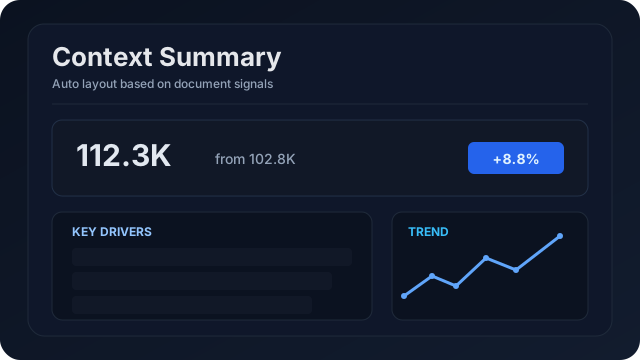
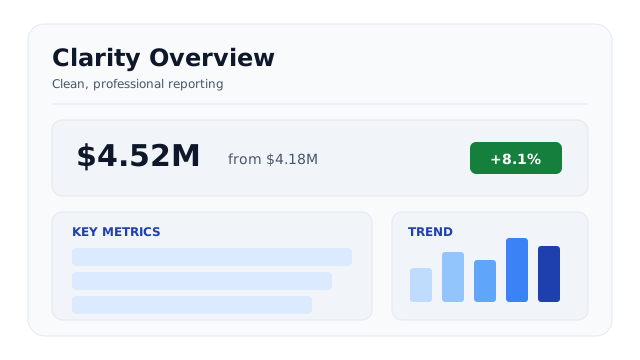
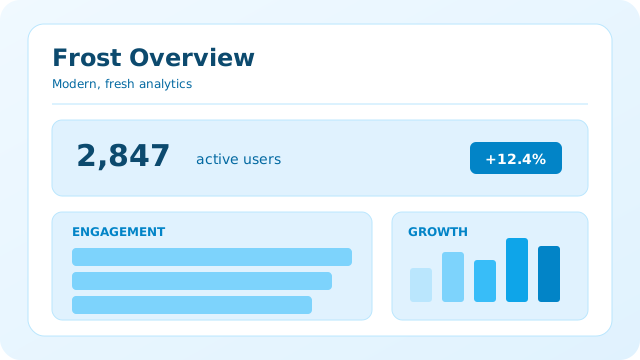
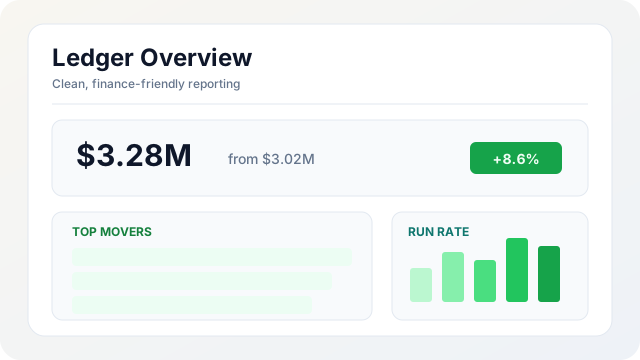
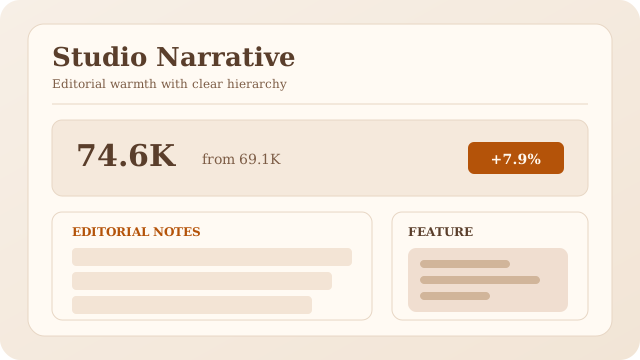
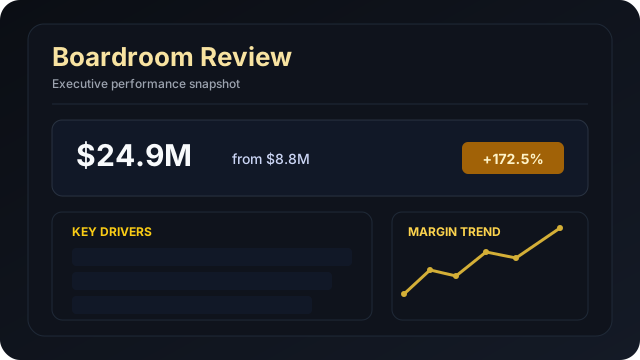
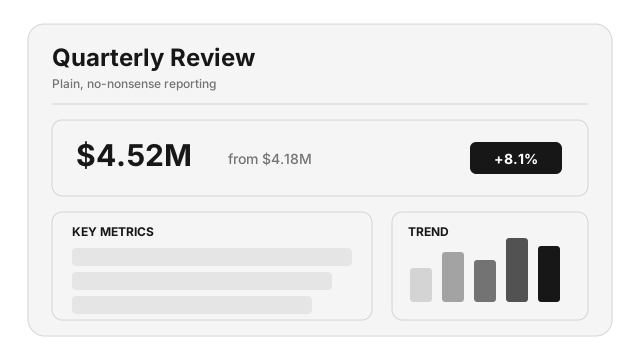
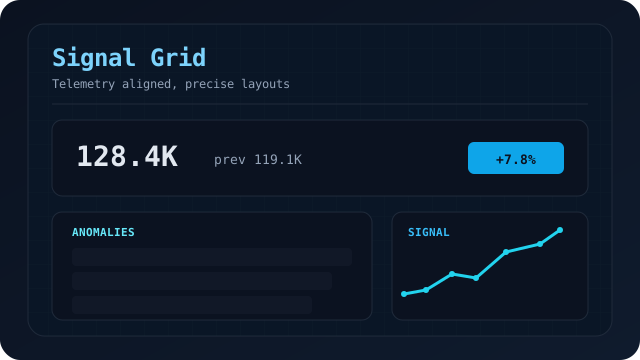
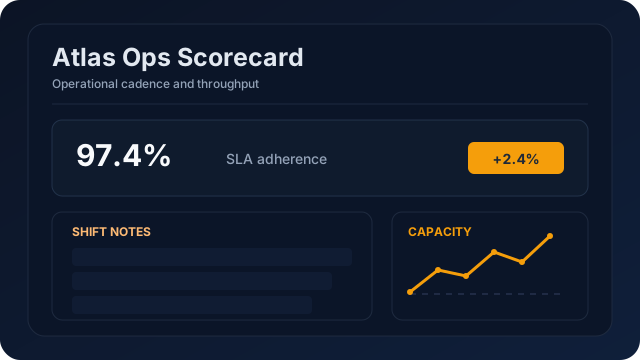
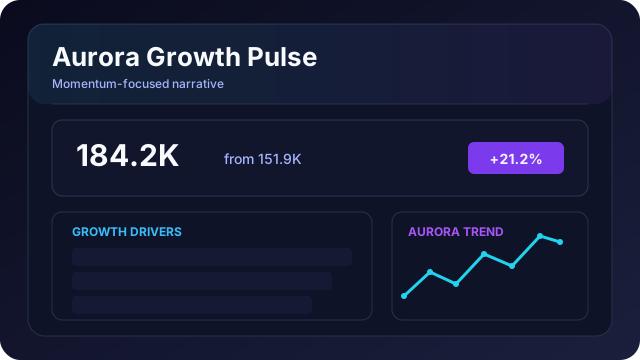
- PowerPoint (PPTX) — each block becomes a slide. Ten themes available for PDF and PPTX: Auto (Context), Clarity White, Frost Blue, Ledger Light, Studio Narrative, Boardroom Noir, Signal Grid, Atlas Ops, Aurora Growth, Ink.
- CSV — per table block, download the underlying data as CSV.
- Shareable link — live or frozen link that works in any browser.
Access requests
When someone visits a restricted document they don’t have access to, they can request access. You review and approve or deny requests from the share dialog.
Scheduled delivery
Deliver finished reports to stakeholders automatically without them needing to open the app.
Setting up delivery
- Open the Share dialog from the right sidebar.
- Toggle Enable Email Delivery.
- Choose a format: PDF, PowerPoint, or a link to the live document.
- Set a schedule: Daily (8 AM), Weekly (Monday 8 AM or Friday 5 PM), or Monthly (1st of month at 8 AM).
- Enter the recipient email, or enable Send to all shared users.
Deliveries are timezone-aware. The report is generated fresh at send time so recipients always get the latest data.
Settings
Document-level instructions live in the Agent context drawer — those shape how the AI writes. The Settings panel controls how the document runs: refresh cadence, auto-update behaviour, exports, and delivery.
Opening settings
In the editor, click the Settings tab in the right sidebar, or jump straight there with Cmd/CtrlAlt3. The panel is tab-organized — each section below maps to a tab.
Scope: settings are per-document. Projects have their own instructions bar on the Documents page; those apply to every document in the project.
Refresh interval (shared links only)
Pick how often a shared live link auto-refreshes for viewers: 15, 30, 60, or 120 minutes. This setting does not affect your editor view — see Refresh, freeze & timeline.
Email delivery
Send the document to stakeholders on a schedule — no app login required on their end.
- Format — PDF, PPTX, or a live link.
- Schedule — Daily at 8 AM, Monday at 8 AM, Friday at 5 PM, or 1st of the month at 8 AM.
- Timezone — any IANA zone (e.g.
Europe/London). - Recipients — specific email override, or toggle Send to shared recipients to fan out to everyone with restricted-share access.
See also Scheduled delivery for the broader flow.
Chart colors
Pick a color scheme applied to every chart and KPI in the document. This is separate from export themes (below) — one controls in-editor visuals, the other controls PDF/PPTX output.
Export themes
Ten themes, identical lists for PDF and PPTX. Each defines colors, typography, and layout. Switch any time; the next export picks up the change.
Source shortcuts
Pin up to a few sources to the left sidebar as quick-access tiles. Useful when one document pulls from many connections — the shortcut tile jumps to that source’s schema explorer without scrolling.
Credits & plans
AI operations consume credits. Credits refill monthly on the billing cycle; they don’t roll over.
Plans
- Free — 25 credits / month, 1 GB storage, co-worker auto-update disabled.
- Pro — £19/mo, 500 credits / month, 15 GB storage, up to 3 auto-update docs.
- Pro+ — £49/mo, 1,500 credits / month, 50 GB storage, up to 10 auto-update docs.
Warnings
Your remaining balance streams live to the UI. You’ll see:
- 20% remaining — low warning (soft banner).
- 5% remaining — critical warning (louder banner, AI actions still allowed).
- 0 credits — AI actions are blocked until refill or upgrade.